
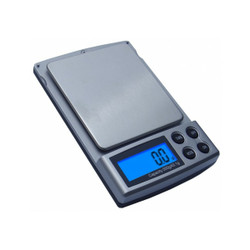
If your pocket scale has a dim display, check whether the backlight has switched off before replacing batteries or changing settings. The scale may still be operating normally with its illumination off.
If the digits themselves are faint, flickering or incomplete, investigate the power supply, viewing conditions and screen condition.
Do not rely on a measurement unless you can clearly read the number, decimal point and unit. Calibration does not repair a dim display.
Quick Pocket Scale Display Checklist
| Check | What to do | What it helps identify |
|---|---|---|
| Backlight | Look for visible digits after the light goes dark | Normal backlight timeout |
| Batteries | Install fresh, matching batteries of the specified type | Depleted power |
| Charging | Follow the model’s charging instructions | Insufficient charge |
| Viewing angle | Change your viewing position without tilting the scale | Angle-related visibility |
| Lighting | Reduce glare and direct reflections | Poor viewing conditions |
| Screen surface | Check for film, fingerprints or residue | Obscured display |
| Contacts | Inspect accessible battery connections | Intermittent power |
| Damage | Look for missing segments, cracks or dark patches | A possible display fault |
The AWS product FAQ provides additional information about display behavior. Some models have adjustable backlight settings or automatic dimming; check your model’s instructions. awscales.com
1. Check Whether Only the Backlight Is Off
Look closely at the screen under suitable room lighting.
- Are the digits still visible?
- Can you see the unit indicator?
- Did the light go dark after a period without interaction?
- Does the manual describe a backlight timer?
If the numbers remain visible, the illumination may have timed out while the scale stayed on.
Use the Correct Wake-Up Action
Follow the documented procedure to restore the backlight. Do not press tare simply to illuminate the screen: it may change the weight reference.
Find the controls and settings for your exact model in the AWS product manuals.
2. Replace Weak Batteries
Check the batteries if the entire display looks weaker than usual, especially when accompanied by:
- A low-battery message
- Flickering
- Unexpected shutdowns
- Restarts
- Intermittent operation
Battery Replacement Steps
- Remove anything being weighed.
- Turn the scale off.
- Disconnect external power, if applicable.
- Confirm the specified battery type.
- Replace the complete set with fresh, matching batteries.
- Check the + and − markings.
- Secure the battery cover.
- Restart normally.
Energizer’s battery-care guidance advises against mixing old and new batteries or different types and brands. energizer.com
Use rechargeable replacements only if the scale manufacturer permits them.
3. Check Charging on Rechargeable Models
For a rechargeable pocket scale, confirm that the charging source has power and that the cable and supply match the model’s requirements.
Check for any expected charging indicator and allow the charging time stated in the manual.
A connector fitting into the port does not establish compatibility. Also confirm whether the model supports operation while charging.
If the device is swollen, unusually hot or visibly damaged, stop using and charging it and contact the manufacturer.
4. Improve the Viewing Conditions
Small LCD screens can be difficult to read from certain angles or under strong reflections.
Try:
- Moving your head to a different viewing position.
- Reducing glare from overhead lights.
- Moving away from direct sunlight.
- Using diffuse room lighting.
Keep the scale flat and stable during these checks. Do not tilt or hold it while weighing to improve visibility.
If a container blocks the screen, use a suitable alternative that leaves the display visible and does not touch the housing.
5. Inspect the Screen Surface
Fingerprints, residue, scratches or protective film can make the screen appear dim.
If the scale is new, check whether the instructions identify a removable display film. Remove only that film—not a permanent screen layer.
Before cleaning:
- Turn the scale off.
- Disconnect external power.
- Follow the approved cleaning method.
- Avoid spraying liquid directly onto the screen.
- Avoid abrasive tools or unapproved solvents.
The AWS maintenance guide provides care and storage advice.
6. Inspect Battery Contacts and the Cover
With batteries removed and external power disconnected, inspect accessible areas for:
- Loose batteries
- Dirt or residue
- Corrosion
- Damaged contacts
- A loose or broken cover
Do not bend contacts, scrape them with metal tools or insert foil to improve the connection.
If leakage is present, consult the battery and scale manufacturers before cleanup. Duracell’s battery information sheets provide chemistry-specific handling information for its products. duracell.com
A screen that improves only when you squeeze the housing or press the battery cover needs further inspection.
7. Consider Temperature and Moisture Exposure
Think about whether the dim display began after the scale was:
- Left in a hot or cold vehicle
- Moved between very different temperatures
- Exposed to a spill
- Stored in a damp location
Let the scale return naturally to its permitted operating conditions. Do not use a hair dryer or heater.
If condensation appears inside the screen, leave the device disconnected and seek manufacturer guidance.
Duracell’s battery-care guidance explains that extreme temperatures can affect battery performance and contribute to leakage. duracell.com
8. Distinguish Dimness From Display Damage
A uniformly faint screen differs from one with missing parts of numbers.
| Symptom | What to investigate |
|---|---|
| Entire display is faint | Power, viewing angle and lighting |
| Backlight switches off but digits remain | Backlight timeout |
| Individual segments are missing | Display or internal connection fault |
| Dark patches or cracks appear | Physical screen damage |
| Display changes when the housing moves | Intermittent connection |
| Screen is completely blank | Startup and power supply |
Do not press on the screen or open the housing to restore missing segments.
If you cannot distinguish 0.10g from 0.70g, for example, the display is not usable for that measurement.
9. Keep Calibration Separate
Calibration concerns measurement response, not screen brightness.
After restoring visibility and reliable power, check normal operation. Calibrate only when the manual or an appropriate reference check indicates a need.
Read the AWS guide on how to calibrate a digital scale if measurement performance remains a concern.
The AWS scale FAQs also provides power-related troubleshooting guidance.
Handle Removed Batteries Properly
Keep removed batteries secure, particularly button and coin cells. Refit the cover correctly before returning the scale to use.
The Consumer Product Safety Commission’s button-battery guidance explains why these batteries must remain inaccessible to children. www.cpsc.gov
For disposal, consult the EPA’s used household battery guidance and local requirements. Follow its lithium-ion battery guidance for rechargeable batteries and devices; these should not go into household garbage or municipal recycling bins. www.epa.gov
When to Contact Support
Seek help if the display remains difficult to read after checking power, backlight behavior, viewing conditions and screen cleanliness.
Also contact support for:
- Missing digits
- Cracks or dark patches
- Moisture inside the display
- Problems following a drop
- A damaged battery compartment or charging port
- Brightness that changes when the housing is pressed
Contact American Weigh Scales support with the model number, power-source details, troubleshooting steps and a clear photograph of the display.
Frequently Asked Questions
Why is my pocket scale display suddenly dim?
Check the backlight timer and power source first. Then investigate glare, screen condition and recent damage or moisture exposure.
Does a dark backlight mean the scale is off?
Not necessarily. If the digits remain visible, the scale may still be operating.
Can I increase the brightness?
Only if your model provides a documented setting. Some screens have fixed illumination.
Will fresh batteries fix missing digits?
They may resolve a power issue, but persistent missing segments can indicate a display fault. Seek support if the screen remains incomplete.
Should I calibrate a scale with a dim screen?
Restore a clearly readable display and reliable power first. Calibration does not fix screen visibility.