
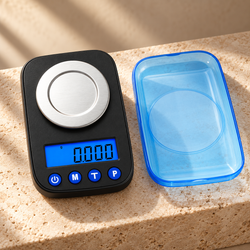
Pocket Scale Shows an Error Code: Troubleshooting Checklist
A pocket scale can display an error during startup, after you place a tray on the platform, or while you are trying to calibrate. The message may appear as a few letters or symbols, leaving you unsure whether to replace batteries, remove weight, or stop using the instrument.
The right response begins with the exact model and message. Error codes are not universal, even among scales that look similar. A warning that indicates low power on one product cannot be used to interpret every unfamiliar display.
This checklist gives you a practical sequence for investigating a pocket scale error. Record the symptom, identify the relevant instructions, complete the indicated checks, and verify operation before relying on measurements again.
Begin with the American Weigh Scales product manual directory. Match the model number and capacity on the instrument, not just a product nickname or photograph.
Quick pocket scale error troubleshooting checklist
Start with the checks relevant to your warning. Do not continue loading a scale that may be overloaded.
-
Remove excessive weight immediately if overload is suspected.
-
Record the complete message and any symbols.
-
Note whether it appears at startup, loading, tare, or calibration.
-
Confirm the exact model and capacity.
-
Read the model-specific error instructions.
-
Check the specified power supply and any battery warning.
-
Restart empty according to the manual.
-
Use a stable surface away from drafts and vibration.
-
Check container clearance and total gross load.
-
Inspect accessible areas for debris or damage.
-
Confirm the normal weighing mode.
-
Use the documented remedy rather than random resets.
-
Verify normal operation with an appropriate reference.
-
Contact support if the warning remains or returns.
Keep a brief record of the result after each change. That makes a recurring problem easier to assess than a sequence of undocumented restarts.
Check 1: Remove any suspected overload
If the display appeared after placing a heavy item on the platform, remove the load before doing anything else. Do not press tare in an attempt to hide the warning.
Include the container and every accessory resting on the platform when considering gross load. A tared zero does not mean the platform is empty.
Check the capacity on the product label or manual. A large tray or expansion cover does not increase the weighing mechanism’s maximum load.
Do not recreate an overload to confirm the message. Existing observations are enough to justify checking capacity and seeking advice.
If the warning remains with an empty platform after the documented checks, stop adding weight. A persistent empty-platform warning needs further assessment.
Check 2: Capture the exact characters
Read the complete display, including underscores, hyphens, icons, and decimal points. On a small screen, Lo and OL can be easy to confuse.
Take a clear photograph or short video if the message disappears quickly. Keep the screen and load state visible without repeatedly provoking the problem.
Record whether the digits are complete. A missing display segment can make a familiar message look like a different code.
Avoid guessing the meaning from one character. The manual may distinguish warnings that differ by a single letter or symbol.
If the screen cannot be read, treat readability as part of the problem. A guessed code can lead to the wrong action.
Check 3: Identify the exact product variant
Two pocket scales in the same family can have different capacities, controls, calibration weights, or operating instructions. Confirm the complete model designation.
Look at the instrument label, original documentation, or order information. If the available manual covers several variants, locate the one that matches yours.
Do not use a search result for a visually similar scale as your only instruction source. Housing design is not proof of identical electronics or procedures.
Adam Equipment’s technical troubleshooting guidance similarly directs users to the correct manual for model-specific error definitions.
If the model label is unreadable, provide support with photographs and purchase information rather than selecting a manual by guesswork.
Check 4: Match the code to a warning category
The table below shows examples found on some instruments. It is a guide to the type of investigation, not a universal code dictionary.
|
Example or category |
Possible meaning on some models |
Initial action |
|---|---|---|
|
Lo or battery icon |
Low power |
Restore the specified battery or charging supply |
|
O_Ld or similar message |
Excessive load |
Remove the load immediately |
|
UnST or instability warning |
Reading cannot settle |
Check support, airflow, movement, and setup |
|
Startup or zero-range warning |
Starting reference outside an accepted range |
Check empty startup and the exact instructions |
|
Calibration failure |
Procedure or reference not accepted |
Review the required sequence and weight |
|
CAL during a procedure |
Calibration stage or prompt |
Follow or exit the documented procedure |
|
Incomplete characters |
Display or power issue |
Resolve readability before interpreting the message |
For example, the AWS CP2-Series instructions distinguish low-battery, overload, and instability messages. Those examples should not be applied automatically to unrelated models.
Check 5: Note when the warning appears
The operating stage can help explain the message. A warning before anything is placed on the platform differs from one that appears only after adding a heavy tray.
Record whether the code follows a particular button press. A calibration prompt after a long press may indicate an unintended menu entry rather than a new fault.
Also note how long the scale has been operating and whether it was recently moved. Power condition and environmental changes may be relevant.
Keep the observation specific: “warning appears after startup with the platform empty” is more useful than “it happens all the time.”
Do not assume that two appearances have the same cause until the operating conditions are compared. Similar symptoms can arise through different paths.
Check 6: Address a confirmed low-battery message
Switch off, remove the load, and install a fresh, matching set of the specified removable batteries. Check every polarity marking.
Use the size, chemistry, quantity, and electrical specification required by the model. A battery that fits physically is not necessarily suitable.
Energizer’s battery care guidance explains correct selection and avoiding combinations of old and new cells.
For rechargeable models, use the approved charging procedure instead of opening the housing. Do not assume a USB connection charges removable batteries.
Restart normally and check whether the warning clears. A bright display alone does not prove that the power problem is resolved or that measurement performance is correct.
Check 7: Inspect the accessible battery compartment
With the instrument switched off, check seating, cover condition, and visible contacts. Look for leakage, residue, damaged plastic, or a loose holder.
Do not bend contacts aggressively, scrape inside the compartment, or insert foil to force a connection. These actions can introduce another problem.
If a new scale has never started properly, check the setup instructions for a battery isolation tab where applicable. Remove only packaging identified by the instructions.
Duracell’s battery care recommendations provide additional guidance on correct installation and replacing used batteries together.
If verified fresh batteries do not clear the warning, record that result. Repeated replacements are less useful than support assessment of a possible connection or instrument fault.
Check 8: Complete an empty-platform startup
Remove the container and loose accessories, then follow the normal startup procedure. Leave fixed platform components in place.
Allow the display check and initialization to finish. Follow any model-specific warmup or preparation requirement before using the controls.
Check whether a protective cover or removable tray is positioned as intended. An accessory can interfere with platform movement if fitted incorrectly.
Do not press multiple buttons during startup. A clean sequence gives you a clearer comparison and avoids accidental entry into another mode.
If the warning persists before loading, note that the sample and container were absent. This helps narrow the next investigation.
Check 9: Stabilize the support surface
Use a hard, stable surface and confirm that the scale does not rock. Avoid cushions, folded cloth, flexible lids, and handheld weighing unless the product is designed for it.
Check the feet and underside for trapped objects. Even a small obstruction can change how the instrument sits.
Remove your hands from the table while observing the screen. Leaning, typing, or sorting items nearby can disturb a shared surface.
Move to another suitable location for a comparison while keeping the reference and procedure unchanged.
Adam Equipment’s general scale troubleshooting guide includes checking basic placement and operating conditions before seeking further service.
Check 10: Reduce drafts and vibration
Fans, vents, open windows, nearby equipment, and foot traffic can affect sensitive readings. An instability warning should prompt an environment check.
Observe whether the symptom changes when an identifiable disturbance is absent. Make comparisons only where doing so is safe and appropriate.
A container with a broad exposed surface may react differently from a compact reference. Compare the complete arrangement, not just the scale’s location.
METTLER TOLEDO’s analytical weighing guidance discusses protecting sensitive measurements from vibration and airflow.
Do not wrap the scale in fabric or create an enclosure that touches the pan. Correct the surroundings without introducing new contact or temperature problems.
Check 11: Review recent transport and temperature changes
A portable scale may move from a vehicle or storage area into a very different room. Follow the model’s acclimatization and warmup instructions.
Avoid direct sunlight, heaters, and rapidly changing ventilation. Keep the instrument within its specified operating conditions.
A warm or chilled sample can also complicate sensitive measurement. Compare with a suitable reference already at the permitted ambient conditions.
Do not apply a laboratory balance’s waiting time to a different pocket model. Use the actual product requirements.
If the problem occurs only immediately after transport, record the pattern. It can help explain why the warning seems intermittent.
Check 12: Verify container clearance
Look around the entire container, including underneath its edges. It should sit securely on the intended platform without touching the housing, table, wall, or cable.
A wide tray can bridge the platform and case even when it appears correctly centered from above. Try a smaller, rigid container as a comparison.
Keep scoops, hands, and packaging away during the reading. External contact introduces forces that the scale may interpret as a changing load.
Do not use calibration to compensate for a bowl resting on another surface. Correct the load path first.
If the warning disappears with a smaller container, record both container arrangements and weights. That result points toward fit or load-related checks.
Check 13: Calculate the complete load after tare
Tare subtracts a stored value from the display. It does not remove the container’s physical weight.
A hypothetical 500-gram scale supporting a 100-gram container has only 400 grams of physical allowance left for additions in a conventional subtractive arrangement, subject to the model’s limits.
Repeated taring during a task can conceal accumulating gross weight. Track the complete load rather than treating every zero as a fresh capacity allowance.
Check any separately specified tare range too. A permitted zeroing range and maximum weighing capacity are not automatically the same.
Remove an overload instead of waiting for it to stabilize. If the scale was overloaded before the warning began, include that history in your support request.
Check 14: Inspect accessible debris and platform movement
Crumbs, powder, sticky residue, and packaging fragments can interfere with clearance. Inspect accessible areas with the instrument switched off.
Remove only accessories designated as user removable. Do not pry up the pan or adjust the weighing mechanism.
Follow the approved cleaning method and any drying requirement. A metal platform does not make the housing or electronics waterproof.
Check underneath the instrument as well as around the pan. Debris under a foot can create an instability problem.
Use the AWScales maintenance guidance together with the model instructions, then repeat empty startup before adding a reference.
Check 15: Confirm ordinary weighing mode
Counting, percentage, hold, and configuration modes can produce displays that differ from ordinary live weight. Check for mode indicators if your model offers these functions.
Recall which control was pressed immediately before the message appeared. A long press may enter a menu where a short press performs normal operation.
Return to weighing using the documented sequence. Avoid unfamiliar combinations intended for another product.
A stored or held value is not necessarily an error. Likewise, a calibration prompt can be an expected operating state after the relevant command.
If you cannot identify the display, record it and ask support. Random menu changes can make the original symptom harder to interpret.
Check 16: Handle calibration messages carefully
If the manual identifies a calibration problem, confirm the procedure and specified reference weight before trying again.
Use suitable stable conditions and the exact sequence for the model. Check whether the prompt requires a particular mass or stage before placing anything on the platform.
NIST’s overview of mass standard calibration explains the role of calibrated weights in supporting reliable mass measurements.
Do not use coins or packaged goods as precise calibration standards simply because you expect them to weigh a certain amount.
If the correct reference is unavailable, pause the adjustment. Repeated failed attempts with an improvised mass can complicate measurement performance without resolving the warning.
Check 17: Distinguish a blank screen from a code
A blank display provides no readable code. Check the specified power source, battery installation, and approved startup instructions.
Partial characters also prevent reliable interpretation. Photograph them rather than guessing which segments are missing.
If fresh correct power does not restore a readable display, seek support. Internal display connections are not part of routine user troubleshooting.
Record whether the condition began after impact, moisture exposure, or transport. Avoid flexing or tapping the housing to make the display return.
A temporary readable screen is useful evidence, but it does not establish that an intermittent connection has been repaired.
Check 18: Verify recovery before returning to work
Once the warning clears, confirm normal operation rather than immediately relying on the next displayed number.
-
Complete the documented empty-platform startup.
-
Confirm the expected zero and ready indication.
-
Place a suitable reference gently near the center.
-
Allow the reading to settle as instructed.
-
Compare with the reference’s stated mass.
-
Remove it and observe the return toward zero.
-
Test tare separately if required for your task.
Keep every load within capacity. Repeat only as needed to assess consistency under unchanged conditions.
A single check does not establish full accuracy across the range. Use the verification appropriate to your application and seek advice if results remain inconsistent.
Use a simple troubleshooting record
Keep a short log instead of relying on memory. Include the model, capacity, exact message, operating stage, unit, power source, load, and relevant setup.
For each action, record the observed result. “Fresh batteries cleared the warning, but the empty reading still moved” distinguishes two issues clearly.
Do not report an assumed cause as a confirmed diagnosis. A warning near running equipment suggests a comparison; it does not prove vibration without further evidence.
If the issue returns, compare the new session with the earlier one. A repeated pattern involving one tray or location can guide the next check.
The AWScales Knowledge Center provides additional setup and operating resources for building a consistent process.
Common situations and the useful next check
|
Situation |
Useful next check |
|---|---|
|
Warning appears after a heavy tray is added |
Gross load, capacity, tare range |
|
Warning appears after storage |
Battery condition, accessible contacts, startup |
|
Message appears after a long button press |
Mode or calibration procedure |
|
Error clears after moving the scale |
Surface, airflow, vibration, temperature |
|
Empty scale warns after a fall |
Stop loading and obtain support |
|
Characters are incomplete |
Power and display readability |
|
Calibration repeatedly fails |
Correct reference, exact procedure, stability |
|
Warning returns only with one sample |
Container contact, movement, temperature |
Use the table as a guide to investigation rather than a replacement for the code definition. The model-specific instructions remain the starting point.
What not to do when an error persists
Do not keep overloading the platform, press controls forcefully, or use tare to conceal an unexplained result.
Avoid random adapters, improvised battery spacers, and undocumented service settings. A matching connector or similar-looking menu does not establish suitability.
Do not open the housing or adjust the load cell. Internal changes can introduce damage and complicate service assessment.
Repeated restart attempts can remove the visible warning temporarily without resolving its cause. Document one normal attempt and the relevant checks instead.
A controlled sequence gives support useful evidence and helps you recognize when a simple remedy has actually worked.
When to contact American Weigh Scales
Seek support when the code is absent from the manual, the documented remedy does not help, or the warning returns under suitable conditions.
Also seek help after overload, impact, liquid exposure, visible damage, or a persistent warning on an empty platform.
Prepare the model number, exact message, purchase information if available, and your troubleshooting log. Add a photograph or brief video that shows the symptom without recreating a damaging event.
Use the American Weigh Scales contact page for model-specific assistance.
If the task requires more capacity or a different platform, review the specifications in the AWScales pocket scale range before choosing a replacement. An error alone does not establish that replacement is necessary.
Frequently asked questions
Does Lo always mean low battery?
It commonly means low battery on some scales, including specified AWS models, but you should confirm the exact definition in your manual.
Can tare remove an overload warning?
Tare does not remove physical weight. Remove the excess load and check the complete gross weight against capacity.
Should I calibrate every time an error appears?
No. Match the remedy to the warning. Power, overload, instability, and calibration conditions need different responses.
Why does the same code return after a restart?
The underlying condition may still be present. Record when it returns and investigate the indicated cause instead of restarting indefinitely.
Can I use a manual for a similar-looking scale?
Use the exact model and variant. Similar housings do not guarantee identical controls, limits, or calibration references.
Is an error code proof that the scale is broken?
No. Some warnings reflect correctable setup or power problems. Persistent warnings, damage, or failed verification require further assessment.
Finish with an identified cause and a checked result
When a pocket scale shows an error code, record the exact message, consult the correct instructions, and complete the relevant checks in order.
Verify normal startup and reference performance after the warning clears. For additional general operating explanations, consult the AWScales product FAQ. A clear observation and a controlled next step are more useful than guessing at a universal reset.