
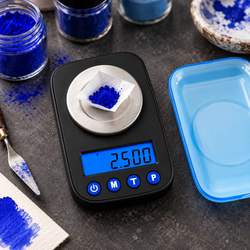
If your pocket scale will not tare, start by checking the weighing setup, container, button operation, and power supply. A failed attempt to reset the display does not automatically mean the scale needs calibration or replacement.
Place the scale on a firm, level surface, allow the reading to settle, and follow the model’s tare instructions. If that does not work, use the checklist below to narrow down the cause.
Find your exact model in the American Weigh Scales product manuals before trying button combinations or changing settings.
Quick Pocket Scale Tare Checklist
- Confirm which button operates tare.
- Start with an empty, unobstructed platform.
- Use a firm, level weighing surface.
- Reduce drafts and nearby vibration.
- Choose a lightweight container that fits the platform.
- Wait for the container reading to settle.
- Check the battery condition.
- Clear any previous tare according to the manual.
- Test the function again before considering calibration.
What Should Happen When You Press Tare?
Tare deducts a reference load, usually an empty container, so that the display shows the weight of material added afterward.
For example, if a container weighs 20 g and you add 5 g of material after taring it, the display should show approximately 5 g, subject to the scale’s specifications.
The container still counts toward the maximum physical load. Adam Equipment’s explanation of tare describes both the subtraction process and its effect on remaining capacity. adamequipment.com
1. Check the Correct Button and Press Duration
Pocket scales may label the function TARE, T, ZERO, or combine it with another control.
Check the manual for:
- The correct button.
- Whether to press briefly or hold.
- Which operating mode supports tare.
- Any stability or load conditions required.
Holding a shared power/tare button may switch off the scale instead of resetting the reading.
Zero and tare can produce similar-looking displays, but their functions differ. Hardy Process Solutions’ zero-versus-tare guidance explains the distinction between establishing a gross zero and a net reference. hardysolutions.com
For common control questions, consult the AWScales product FAQ.
2. Check the Unloaded Reading
Remove the container and all material from the platform. Confirm that nothing touches the weighing surface.
Switch on the scale according to its manual and allow startup to finish.
| Unloaded behavior | What to do |
|---|---|
| Settles at zero | Continue with the container test |
| Shows a steady negative value | Check whether a previous tare remains active |
| Fluctuates continuously | Investigate the environment and power |
| Shows an error | Look up the model-specific message |
| Does not respond to controls | Check power and seek support if necessary |
Do not repeatedly press tare to hide an unstable unloaded reading.
3. Stabilize the Weighing Location
A scale may reject a tare command when its stability conditions are not met. Even if it accepts the command, continued movement can make the resulting reference unreliable.
Move away from fans, ventilation outlets, open windows, and vibrating equipment. Keep your hands off the support while the reading settles.
NIST’s guidance on factors affecting weighing operations identifies air currents, temperature differences, electrostatic effects, and handling as potential sources of measurement error. www.nist.gov
Pass condition: The container reading settles before you operate tare.
4. Try a Lighter, Smaller Container
A container may be unsuitable because it is too heavy, exceeds the model’s tare range, or touches the surrounding housing.
Choose a container that:
- Fits securely on the platform.
- Leaves room for the sample within capacity.
- Does not contact nearby objects.
- Meets any model-specific requirements.
For ordinary subtractive tare, a 100 g-capacity scale carrying a 30 g container has at most 70 g of physical capacity remaining. A separate tare limit may also apply.
METTLER TOLEDO’s precision balance guidance explains that taring records the container weight while resetting the displayed net value. The physical load remains on the instrument. www.mt.com
5. Check for Contact or Debris
Inspect the space around the platform without pressing, lifting, or prying beneath it.
A container touching the lid, housing, wall, or draft shield can transfer force and interfere with weighing. Loose material around the platform can also restrict movement.
Follow the AWScales maintenance guidance when cleaning.
Pass condition: The platform and container touch only their intended supporting surfaces.
6. Check Battery Power
Address a low-battery warning, fading display, or unexpected shutdown before continuing.
Install the specified fresh batteries with the correct polarity. Replace the complete set when the model uses multiple cells.
Energizer’s battery-care guidance advises against mixing old and new batteries or different types and makes. energizer.com
For rechargeable models, follow the charging instructions. Do not substitute an unapproved power adapter.
7. Run a Controlled Tare Test
Once the scale is stable and properly powered:
- Start with the platform empty.
- Clear any previous tare as instructed.
- Confirm that the unloaded display settles at zero.
- Place a suitable empty container centrally.
- Wait for the reading to settle.
- Operate the tare control.
- Confirm that the display settles at zero.
- Add an appropriate reference weight within the remaining capacity.
- Compare the result with the reference and model specifications.
Record exactly where the process fails. “The button does nothing” and “the display reaches zero, then drifts” point to different troubleshooting paths.
8. Interpret Negative Readings Correctly
If you tare a container and then remove it, a negative reading may be normal. The stored reference remains, but the container is no longer present.
Clear tare using the model’s specified procedure.
Do not assume every negative reading indicates a fault, and do not enter calibration mode merely to remove it.
9. Decide Whether Calibration Is Relevant
Calibration is usually not the first response to a tare button that will not operate.
| Test result | Next step |
|---|---|
| Tare works and reference results meet specifications | Continue normal use |
| Tare works, but repeatable results miss the reference | Check calibration instructions |
| Readings fluctuate before and after tare | Resolve instability |
| Tare still fails with a suitable container | Seek model-specific support |
| Button feels stuck or damaged | Stop forcing it |
The AWScales calibration guide provides general background. Use your model’s exact procedure and required weight.
NIST’s guide to uncertainty for balances and scales provides context for checking measurement performance. A successful reset to zero does not, by itself, establish accuracy. www.nist.gov
Frequently Asked Questions
Why does my pocket scale tare and then change?
Tare establishes a reference at that moment. Drafts, vibration, temperature changes, contact, or changes in the sample can move the subsequent reading.
Can I tare more than once?
Many models allow successive taring. Check the manual and remember that the container and every addition still count toward total capacity.
Why will my scale not register a tiny amount after taring?
The amount may be below the model’s reliable weighing range. Display resolution alone does not establish minimum reliable sample weight.
Should I restart the scale with the container already on it?
Follow the manual. Starting with an empty platform makes troubleshooting easier by separating the startup reference from the container tare.
What if none of these checks works?
Review the AWScales support FAQs, then contact American Weigh Scales support. Include the model number, container weight, power source, display message, and the exact point where the tare test fails.